

Kindle Fire Tricks and Tips
Quick tips and tricks for getting the most fun out of your Kindle Fire.
Updated May 10, 2023
FTC Disclosure: If you make a purchase via a link on this site, I may receive a small commission. There will be no added cost to you. Thank you!
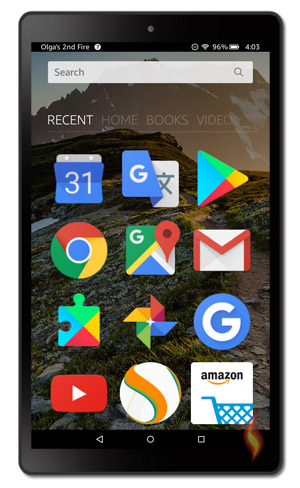
What Kindle tricks and tips are you looking for? Check out these tutorials to learn something new, including how to install the Google Play Store on a Kindle Fire without rooting!
As a computer geek I like to know all the ins and outs of my electronic gadgets, and my Kindle Fire is no exception. This naturally led to having a page full of Kindle Fire tricks and tips!

Please be aware that we do our best to share safe Kindle Fire resources with you, but Love My Fire cannot be held responsible or liable for any issues you (or your device) may experience by following the tips, tricks, and tutorials on this website. Please see the Terms of Use page for full details. Thanks!
Clear Your Search History from the Silk Browser
There are 3 ways to clear your search history from the Silk browser.
You can either delete individual searches one by one, bulk delete all your searches from within Silk itself, or delete your history without opening Silk at all!
Learn all 3 methods in this simple tutorial.
Control Your Fire Tablet With Your Eyes (Fire Max 11 Only)

It may sound like something from a science-fiction movie, but the future is really here!
It's now possible to control certain functions within Alexa using just your eyes, which is wonderful for accessibility and a very convenient hands-free option!
This awesome tech is currently only available for the Fire Max 11 and you can learn all about it here.
Make Chrome Your Default Browser
If you've installed Google Play Store and downloaded Chrome, chances are you'd prefer all your links to open in Chrome instead of Silk.
In this simple tutorial you'll learn how to set Chrome as your Fire's default browser.
Install Google Play Store on Your Kindle Fire
If you've been using your Fire for awhile you've probably had the experience that some apps are not in the Amazon Appstore, but have only been added to Google's Play Store!
What can you do? Well, if you have a (relatively) newer Fire you can now install the Google Play Store directly to your tablet!
This new Kindle tip & trick gives simple step-by-step instructions for easily putting Google Play on your Fire.
After you've done that you can search for and install not only Google's top apps but any and all of your favorite apps from Google's Play store, including Chrome.
I even have a bonus tutorial that explains how you can continue to Use Chrome Extensions on the Fire Tablet.

If you have an older tablet, don't despair, there are still a few things you can try. See my exclusive article on side-loading apps from Google. It's only for subscribers to my Kindle Fire Alerts newsletter. If you're not already subscribed just fill in the form in the column on the right, confirm your subscription in the email you should receive, and I'll automatically send you the link in a follow up email!
How to Transfer Content from An Old Fire to a New Device
Have you treated yourself to an upgrade, or - even better - been bought a new Fire tablet? Yay, exciting times!
But now you're faced with the challenge of how to transfer all your content from your old device to the shiny new one!
Fortunately, Amazon has made the process pretty easy and most files can be transferred via the Cloud. But not everything will transfer that way and you may need to move some files manually.
Find out more here in this simple guide.
How to Install Android Apps on Kindle Fire

In this tutorial you'll learn how to put android apps (that are in apk format) on your Kindle Fire, including downloading, transferring (if necessary), and installing.
This means that if there is an android app that's not in the Amazon Appstore, that you want to have on your Kindle Fire, you can follow this tutorial to do so.
Of course, you need to know what app(s) you want and where to get it, such as downloadable from a website, in another appstore, sent to you from someone you trust, etc.
Olga shows you how to do all of this in her step-by-step article that's full of images and directions to help you get android apps on your Kindle Fire.
Installing Alternative App Stores on Kindle Fire

Did you know there are other app stores, besides Amazon's Appstore? You've most likely heard of the Google Play Store, but what about other app stores?
Yep, there are more! In this page, Olga lists the top four alternative app stores for Kindle Fire and how to install them on your device.
With MILLIONS of apps available online and in all the app stores that are out there, there really is an almost never ending amount of apps you can find and enjoy on your Kindle Fire.
There are apps for almost anything you can want: games, tools, utilities, notes, etc.
So check out these other app stores and have some fun!
Kindle Fire Tip: Remove Ads & Special Offers - Updated!
Not interested in seeing Amazon ads and special offers when you turn on your Kindle Fire? Learn how to Remove Ads & Special Offers in this step by step Kindle Fire tip.
You'll also be shown how to remove under the carousel (in portrait view) the icons of items that "Customers Also Bought".
If you choose to remove the ads, you will then see the nifty Kindle Fire Backgrounds that come pre-installed on your tablet.
Update: You may also like to learn how to remove the 'Continue and Discover' row on your Fire's home page, which contains Amazon's recommendations.
How to Delete Stuff Off Your Kindle Fire
This tutorial may seem a little simple, but not only will you learn how to delete content from your Kindle Fire, but you'll also learn how to permanently remove items from your Amazon cloud!
There's even a sweet Kindle tip to show you how to archive apps so they won't show up on your Kindle Fire, but aren't actually deleted. This way you can clean up the list of apps showing on your tablet but you can restore them at a later date.
All these tips are easy to do and I give you simple step-by-step instructions that you can follow along with on your own device. Have fun!
Kindle Fire Battery Saving Tips
Like most electronic devices, the Kindle Fire has a limited amount of battery life.
Fortunately, these Kindle Fire Battery Saving Tips I put together can help you lengthen the time you have to enjoy your tablet before it needs to be charged!
I'm sure there are other tips and tricks out there for conserving battery power, so if I've missed any that you're aware of, I'd love to hear about them.
Enjoy these tips and then be sure to check out all the other tutorials on this page!
How to Protect Your Fire's Charging Port
As with most devices, the charging port on your Fire tablet is vulnerable to wear and tear. Charging your Fire is something you may even do on a daily basis and - let's face it - we are not always as careful when connecting and disconnecting the charging cable as we should be!
The good news, though, is that there's a simple way to make the process of charging your Fire a lot less stressful on your device.
Just see this article to learn more
Mirror Your Kindle Fire HDX to an HDTV
If you purchased a new Kindle Fire in 2013 or later then most likely your tablet has the ability to mirror it's screen to an HDTV! This means you can see your Kindle's screen right on your TV, all you need are a few accessories.
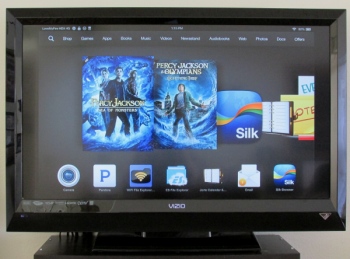
Just follow this simple, step-by-step Kindle tip to learn how to mirror your Kindle to your TV and you'll be set to go!
(If you're not sure which Kindle Fire you have, just see my flowchart that explains how you can know.)
How to Transfer Files & Apps to Your Kindle Fire - Updated!
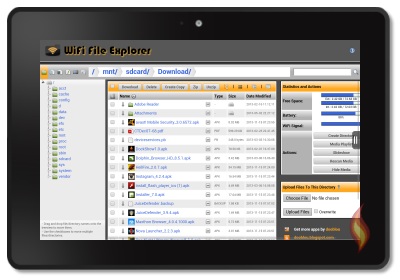
Although I already answered this in my FAQ, I decided to go all out and typed up a full tutorial on how to transfer files to your Kindle Fire.
There are tons of images and easy step-by-step instructions, plus three different methods you can use: transfer by cord, app, or email.
Just find the one you want and try it out!
There is also a new article with additional tips for owners of newer generations of Fire tablets.
How to Change Your Kindle Fire Name

Have you ever wondered if you could change the name of your Kindle Fire? (Shown at the top left of your device.)
Yes, you can! But how? It's easy!
Alright, I'll show you how in this tip on changing your Kindle Fire's name.
Kindle Fire Tip: Keyboard Shortcuts
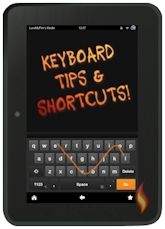
My latest Kindle Fire tips include two articles, one on the basic on screen keyboard with details on all the settings, options, and basic keyboard use. (There's lots of great stuff here, honestly!)
My other article is full of tips and shortcuts for using the keyboard's Swipe feature, which will really help you improve your speed and ease-of-use when typing on your Kindle Fire's screen.
Even if you've figured out some of these tips, I guarantee you'll learn something new! (Like how to quickly hide the keyboard without hitting the back arrow.)
How to Connect Bluetooth Devices

If you have a bluetooth device you want to connect to your Kindle Fire, then I have a couple of tutorials for you!
This one specifically focuses on hooking up a bluetooth keyboard to a Kindle Fire, but the same process applies to most other devices.
There are lots of pictures and even some fun tips on using your new keyboard with your tablet, so be sure to check it out!
I also have a separate tutorial for using a Bluetooth mouse with your Fire (with some bonus tips for using a wired mouse too!).
How to Connect Your Kindle Fire to Your TV

Did you know you could connect your Kindle Fire HD to your HDTV and it would display your tablet's screen on your BIG HD screen? If yes, have you tried it out yet? (For newer tablets see my latest article mentioned above.)
The picture and sound quality are really great (better than these photos show)!
My family and I watch movies and TV shows from our Kindle Fire right to our TV all the time, but there are other cool things we do with it too.
There are several advantages to hooking up your tablet to your TV, many of which are shared in this Kindle Fire tip. So check it out and try it yourself- it's really easy to do, just follow this step-by-step tutorial!
Kindle Fire Tip: Password Protection
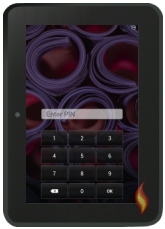
If you want to protect your tablet then one of the first things you should do is setup two specific Kindle Fire passwords.
One will lock your screen so only those who know your pin can access your tablet.
The other will protect you from accidental purchases. When you want to make a purchase (even for free content) you just have to enter your password and you're good to go.
These passwords are great for both malevolent thieves and innocent children in case they end up with your Kindle Fire in their red hot hands!
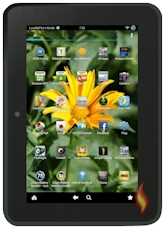
Make Your Kindle Fire an Android Tablet with Customized Wallpaper
NOTE: This tutorial is for older versions of the Kindle Fire.
Although the Kindle Fire is an Android device, it doesn't look or act like one, since Amazon customized it into the carousel and bookshelves.
Now you can make your Kindle Fire Android actually look and act like one AND you can add your own customized background wallpaper!
Just use this Kindle Fire tip to side load some awesome apps that will let you take back control of your tablet. :) So here it is:
Make Your Kindle Fire an Android Tablet with Customized Wallpaper.
Kindle Fire Tip: Side Loading Apps
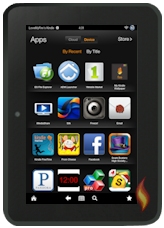
I've completely revamped my tutorial for side loading apps on your Kindle Fire!
The page has been updated with a ton of new pictures and new instructions for downloading and installing the 1Mobile Market app which lets you access thousands of apps not available in the Amazon App Store.
Do you want to side load apps onto your Kindle Fire? (That means being able to
add apps to your tablet that are not available in the Amazon App Store.) Now you
can, just follow this Kindle tip!
There are 1000's of apps out there and only a percentage of them are specifically available as Kindle Fire apps. If you really want an app that's not yet offered from Amazon's App Store, take a look at this tutorial.
With tons of pictures and simple, yet detailed instructions it's easy to do!
Kindle Fire Tip: Watch Flash Videos on YouTube

NOTE: This tutorial is for an older version of the Kindle Fire.
One of the biggest complaints with the Kindle Fire HD is the lack of the Flash plugin (which is Adobe's, not Amazon's fault).
If you're trying to watch videos on YouTube but get an error requiring the Flash plugin what do you do? You follow my Kindle Fire tip, Kindle Fire Flash Support, that's what!
With this step-by-step tutorial you'll learn how to watch videos on YouTube, even without the Flash plugin. It comes with detailed instructions, pictures, and help with the error: "Unable to Play Video".
This tip is also great for those who have the original Kindle Fire, so be sure to check it out, no matter which device you have.
Kindle Fire Tip: How to Install Flash Player
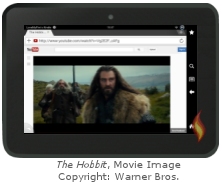
NOTE: This tutorial is for an older version of the Kindle Fire.
If you play lots of videos and games on the Internet (who doesn't?) and have the new Kindle Fire HD tablet, then you'll probably want to Install the Flash Player.
It's not that hard to do, but it does take quite a few steps since you also need to use a different browser since you can't install Flash on Silk (the Kindle Fire's default Internet browser).
Fortunately, I make it super simple and easy to do in this step-by-step tutorial which is full of pictures for you to follow. Ain't I the best!? :)
Kindle Fire Tip: How to Take Pictures and Videos

NOTE: This tutorial is for an older version of the Kindle Fire.
The new Kindle Fire HD tablets come with a built-in front-facing webcam, but what if you want to use the camera to take pictures or videos with your Kindle Fire?
Well, Amazon has NOT made this user friendly, you can't even access the camera without installing an app, so this tutorial on How to Take Pictures and Videos is super helpful!
Not only will you learn how to take photos and videos, but you'll also learn where to find them and what free apps you can use to edit them right on your Kindle Fire.
Kindle Fire Tip: How to Take a Screenshot
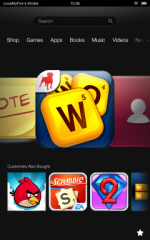
Here's a really cool tip for taking Kindle Fire screenshots right from (and of) your device. I use this one all the time for this website, of course, but now you can too!
Although it's difficult to setup on the original Kindle Fire it's not impossible, but if you have the new Kindle Fire HD tablet then it is SUPER easy.
See this tutorial (with lots of examples) on how to take a snapshot form your Kindle Fire. Be sure to read all my extra notes for important details and other cool tricks and tips.
Then share your snapshots on my Facebook page!
Kindle Fire Tip: Customizing the Wallpaper

NOTE: This tutorial is for an older version of the Kindle Fire.
One of the first things people often ask after having played with their Kindle Fire for a few days is, "How do I change the background wallpaper to use my own pictures?" (It was one of my first questions.)
Well now you can! There are four steps to this process:
- Side Load the 1Mobile Market App
- Side Load the Rotating Wallpaper App
- Resize Photos to Fit Your Kindle Fire (optional)
- Add Photos and Change Your Kindle Fire Wallpaper
After following the above Kindle Fire tips and tricks, you'll have your very own customized background picture!
|
Please note that this tutorial currently only works on the original Kindle Fire NOT the second generation or Kindle Fire HD. :( |
Kindle Tip: How to Follow Blogs on Your Tablet
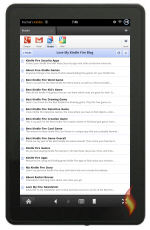
This nifty Kindle trick and tip teaches you how to use RSS to follow your favorite websites, blogs, Facebook pages, YouTube channels, and more. This has been a HUGE time saver for me!
Just add your favorite places to one location which will automatically update anytime a site has something new. This Kindle trick, Following Sites with RSS, is well worth the small amount of time you invest to get started.
Follow this tutorial to set everything up and then use this cool feature on your Kindle Fire, it will save you so much wasted time hopping from site to site to see if anything new has been posted.
Fastest Way to Stop Your Kindle Fire From Randomly Rebooting
If your Kindle Fire has an annoying habit of restarting itself at the oddest moments than this is the Kindle trick for you!
All you have to do is follow my simple instructions in this step-by-step tutorial: How to Stop Your Kindle Fire From Rebooting. It also comes with lots of pictures to show you what to do.
This sweet little tip has worked for my tablet and a few others I know that have suffered from this glitch. So take a few moments to try this out to see if it clears up your Kindle Fire's hiccups. :)
Kindle Fire Tip: Change Your Screen Timeout
One really annoying problem is when you don't touch your Kindle Fire screen after a certain amount of time it goes into sleep mode.
Of course, this feature is to prevent your battery from being used up when you're not using your tablet, but if you are doing something that doesn't require you to touch your screen and the screen timeout feature is active, it can become a real problem.
Fortunately, that's where this little Kindle Fire Tip on How to Change Your Screen Timeout comes into play.
Amazon Fire Tip: Clear Your Print Queue
It's really frustrating when you're trying to print something and you can't, because another print job is jamming up the queue!
What makes it worse is that the setting to clear the queue is not easy to find.
This simple tutorial will show you just where it is, how to clear the queue and get your printer up and running again in no time.
Amazon Fire Tip: Use an SD Card with your Fire
Are you thinking about getting an SD card for your Fire Tablet and need some tips for using it?
Or perhaps you're trying to decide if buying a Fire with a smaller memory - than expanding it with an SD card - is a good way to save money when buying a Fire tablet?
In this article I aim to answer your questions about using an SD card with your Fire... and why I personally prefer to buy my Fire tablets with the largest built-in memory I can afford.
Amazon Fire Tip: How to Connect to Public Wi-Fi
Connecting to public wi-fi with a Fire tablet can sometimes be difficult.
You may find that your device says you are connected - but when you try to access the internet your browser tells you that you are offline.
This is because you usually need to use a login screen - or agree to certain terms and conditions - before using public wi-fi. Unfortunately, the screen you need doesn't always show up!
But never fear - there's an easy fix.
Amazon Fire Tip: How to Speed up Your Device - NEW
If your Fire tablet is running slowly, it can be beyond frustrating!
Depending on the age of your device, there may be no magic fix. Some of the processors and memory on older versions of the Fire mean that they struggle with modern, resource-hungry apps and games.
Nevertheless, there ARE some simple steps you can take to make sure that your tablet runs as fast as it can, and I share those with you in my latest article.
How to Update Apps (Manually or Automatically)
Your Fire automatically updates apps by default, but there are times you may not want this to happen, especially if you're trying to conserve a dying battery.
Alternatively, you may WANT your apps to update automatically, but discover that - for some reason - they're not.
Either way, this article is for you!
Learn how to update your apps in the way you prefer, and read my warning about updating apps if you've installed Google Play Store on your device.
How to Use the Split Screen Feature (11th Generation Only)
The Fire HD 10 and Fire HD 10 Plus (11th generation, released in 2021) come with a handy dandy new feature - the option to split your screen and use two apps side by side.
This is super useful in so many ways - whether you're copying information from one app to another or like to play games whilst you're working!
In this tutorial, I'll show you how to access this feature, either from your Fire tablet or from the Made-for-Amazon keyboard designed to go with it.
New tutorials are regularly being added to this page so please subscribe to my Kindle Fire Alerts to be notified of the latest tips and tricks!
What Kindle tricks and tips work for you? Please share them with me!
I ♥ My Fire!
-Christine



By Christine Albury, Owner of LoveMyFire.com
©Copyright 2024 Love My Fire All rights reserved.
No reproduction permitted without permission.
Please read the Terms of Use , Disclosure, and Privacy Policy before using this site.
LoveMyFire.com is a participant in the Amazon EU Associates Programme, an affiliate advertising programme designed to provide a means for sites to earn advertising fees by advertising and linking to Amazon.co.uk/Local.Amazon.co.uk/Amazon.de/de.BuyVIP.com/Amazon.fr/Amazon.it/it.BuyVIP.com/Amazon.es/ es.BuyVIP.com and is also a participant in the Amazon Services LLC Associates Program, an affiliate advertising program designed to provide a means for sites to earn advertising fees by advertising and linking to amazon.com or myhabit.com.
Subscribe to Love My Fire's Kindle Fire Newsletter!
To be notified of new Kindle Fire news, deals, articles, exclusive content, and more subscribe to my Kindle Fire Email Alerts!
I hate spam too and promise to only send you Kindle Fire Alerts.
(See Privacy Policy for details.)

Leave a Comment:
I love receiving your comments, but please read the notes below before posting. Thank you!NOTES:
- I continue to receive questions I've already answered in my FAQ or in articles on my site. PLEASE check there first!
- All comments are moderated. If you leave the page you won't see your comment until it is approved.
- Select the "Post to Facebook" check box to be notified on FB when a reply has been posted.
- If you scan the previous comments you may find an answer to your question. Click the "View X more" link at the bottom (if visible) to see all comments.
- If you're having trouble accessing my exclusive Kindle Fire articles, please email me directly instead of posting in these comments.
Thanks for sharing!